> ## Documentation Index
> Fetch the complete documentation index at: https://docs.membrane.agency/llms.txt
> Use this file to discover all available pages before exploring further.
# Monitoring and Troubleshooting
After you implemented the integrations, you need to make sure they are working as expected. When they don't, you need to understand what is happening and why.
## Logging
Membrane keeps and provides you with detailed logs of what is happening in your integrations:
* [API Requests](/docs/managing-membrane/monitoring-troubleshooting/logs/api-requests)
* [External Webhooks](/docs/managing-membrane/monitoring-troubleshooting/logs/external-webhooks)
* [External Event Pulls](/docs/managing-membrane/monitoring-troubleshooting/logs/external-event-pulls)
* [External Events](/docs/managing-membrane/monitoring-troubleshooting/logs/external-events)
* [Internal Events](/docs/managing-membrane/monitoring-troubleshooting/logs/internal-events)
* [Flow Runs](/docs/managing-membrane/monitoring-troubleshooting/logs/flow-runs)
## Webhook Notifications
To get notified when an important event happens in your integration workspace, you can subscribe to webhook notifications.
Learn more about webhook notifications here: [Webhook Notifications](/docs/managing-membrane/monitoring-troubleshooting/webhook-notifications)
## Troubleshooting
There are usually three types of problems with integrations:
* Integration ran but resulted in an error.
* Integration ran but didn't do what you expected it to do.
* Integration did not run when you expected it to.
Let's look at how to troubleshoot each of these problems.
### Errors
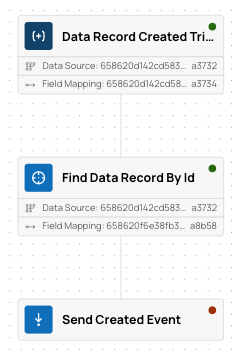
When integration errored, follow red dots to find the reason:
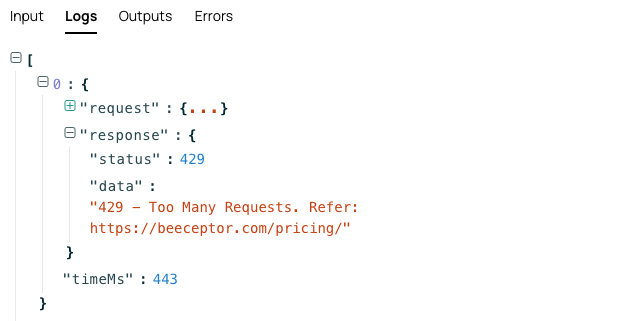
 You can always find the error logs on the "Error" tab of the failed run. To understand what led to the error, check out the "Logs" tab.
 ### Integrations not doing the right thing
When integration ran, but didn't do what you expected it to do, go to the Flow Run page and trace its execution step by step.
### Integrations not doing the right thing
When integration ran, but didn't do what you expected it to do, go to the Flow Run page and trace its execution step by step.
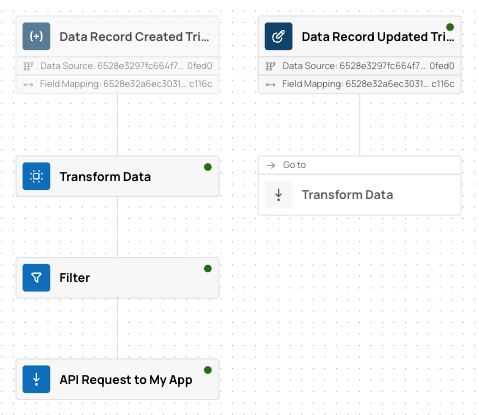 Each node run contains detailed logs of what it did and why. You can see the logs by clicking on the node run and selecting the "Logs" tab.
### Integration Not Running
When you expected an integration to run, but it did not, check the following:
* Check event logs to see if the events you expected did happen:
* [External Events](/docs/how-membrane-works/events) for events from connected systems.
* [Internal Events](/reference/workspace-elements/app-events) for internal events.
* If events did happen, check the event details to see if it launched the integration you expected. If not, check the trigger configuration.
* If events did not happen, check the following:
* For external events: find the relevant External Event Type subscription and inspect its subscription request, webhook URL, and recent deliveries.
* For internal events:
* If you have per-tenant subscriptions, go to the [Tenant Subscriptions](https://console.getmembrane.com/docs/integrations/ux/app-event-types/subscriptions) page, find the subscription you expected to generate the event, and see its details.
* If you use shared event intake, send a test request and check the response.
### Detailed Logs for API requests
To see detailed execution logs for any API request you make, you can add `logs=1` to the query parameters of the request.
The response will contain a `_logs` property with the detailed logs.
Note: this only works when the response is a JSON object.
Each node run contains detailed logs of what it did and why. You can see the logs by clicking on the node run and selecting the "Logs" tab.
### Integration Not Running
When you expected an integration to run, but it did not, check the following:
* Check event logs to see if the events you expected did happen:
* [External Events](/docs/how-membrane-works/events) for events from connected systems.
* [Internal Events](/reference/workspace-elements/app-events) for internal events.
* If events did happen, check the event details to see if it launched the integration you expected. If not, check the trigger configuration.
* If events did not happen, check the following:
* For external events: find the relevant External Event Type subscription and inspect its subscription request, webhook URL, and recent deliveries.
* For internal events:
* If you have per-tenant subscriptions, go to the [Tenant Subscriptions](https://console.getmembrane.com/docs/integrations/ux/app-event-types/subscriptions) page, find the subscription you expected to generate the event, and see its details.
* If you use shared event intake, send a test request and check the response.
### Detailed Logs for API requests
To see detailed execution logs for any API request you make, you can add `logs=1` to the query parameters of the request.
The response will contain a `_logs` property with the detailed logs.
Note: this only works when the response is a JSON object.